The ROG Ally ships with 512GB, and Windows eats part of that before you install anything. Two modern AAA games fill the rest. A microSD card fixes it for less than a new SSD, and it takes ten seconds.
Most card advice optimizes the wrong number. A 300 MB/s card will not load games three times faster than a 100 MB/s one. Here is what does, which capacity makes sense, and how to move your library without redownloading 200GB.
What actually matters on a handheld
Three specs decide whether a card is worth buying. The rest of the label exists to sell it to camera owners.
UHS-I vs UHS-II: why the fast bus is wasted
UHS-I is the bus nearly every card uses, with a 104 MB/s ceiling that good cards reach. UHS-II adds a second row of pins and raises it to 312 MB/s. ASUS put a UHS-II slot in the Ally, the Ally X, and both ROG Xbox Ally models, and it reads UHS-I cards normally. Valve lists UHS-I only for the Steam Deck.
So the Ally can use a UHS-II card. You still should not buy one for games. UHS-II microSD tops out at 1TB today; UHS-I reaches 2TB. Fast cards cost a steep premium per gigabyte. Game loading is dominated by random reads of small files, not sequential bandwidth, so 250 MB/s does not halve load times. ASUS says as much in its own guide: read speed matters, V60 and V90 write ratings do not.
Buy a good UHS-I card, put the savings into capacity, and ignore the bus spec.
A2: the rating that helps
Application Performance Class rates random input and output. A2 guarantees 4,000 read IOPS and 2,000 write IOPS; A1 guarantees 1,500 and 500. Games stream small assets constantly, so A2 is the label worth paying for, and the gap at the same capacity is usually small.
V30: the floor for installs
Video Speed Class sets a minimum sustained write speed: V30 means 30 MB/s, V90 means 90. Games do not record video, but they write during installs, patches, and shader compilation. V30 keeps that from crawling. Anything above V30 is for cameras. Do not pay for it.
512GB, 1TB, or 2TB: the real math
Capacity is where the money goes, so get it right the first time.
- 512GB holds four to six large games, or a couple dozen indie and emulated titles. Right size if the card is overflow for the SSD.
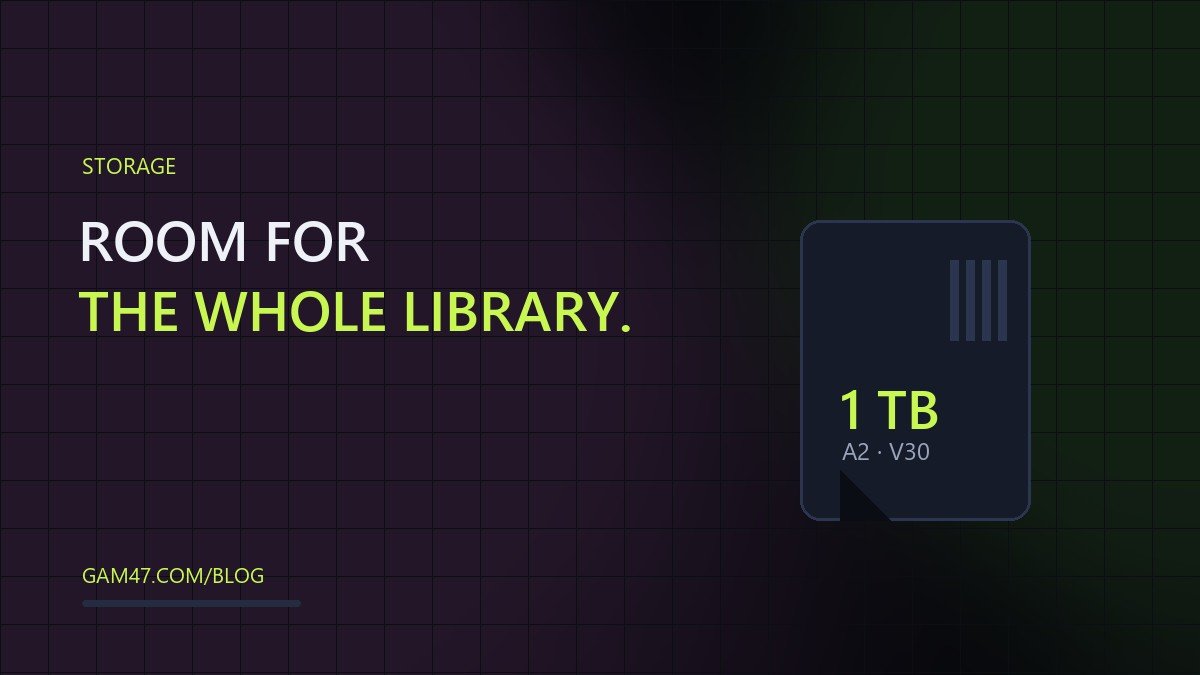
- 1TB is the sweet spot: a real library, and the lowest cost per gigabyte in every brand below.
- 2TB is for people who refuse to manage storage. It exists, including in the SanDisk Extreme line, but costs more per gigabyte than a 1TB card.
The Ally supports up to 2TB. Leave 10 to 15 percent free: a full card has less room for wear leveling and writes slower. A card is not an SSD, so open-world games load slower and pop textures.
Four cards worth shortlisting
All four are UHS-I, A2, and V30, and all four are rated by the manufacturer. No handheld reaches those numbers; the bus caps out first.
| Card | Class | Rated speed | Capacity | For whom |
|---|---|---|---|---|
| SanDisk Extreme | UHS-I, U3, V30, A2 | 190 MB/s read, 130 MB/s write | 64GB–2TB | The default. Best all-round speed and range. |
| Samsung EVO Select | UHS-I, U3, V30, A2 | 160 MB/s read | 64GB–1TB | Best value at 512GB and 1TB. |
| Lexar Play | UHS-I, U3, V30, A2 | 150 MB/s read | 128GB–1TB | Built for handhelds. Fine, not fastest. |
| Kingston Canvas Go! Plus | UHS-I, U3, V30, A2 | 170 MB/s read, 90 MB/s write | 64GB–1TB | The pick if you move big files to a PC. |
The SanDisk 190/130 rating covers 256GB to 1TB; the 2TB version is rated higher.
SanDisk Extreme
The safest all-round buy. Get the 1TB unless the 2TB lands at a good cost per gigabyte.
Check the current price on Amazon
Samsung EVO Select
Lower read rating on paper, which barely shows in play, and usually the cheapest A2 V30 card from a major brand. No 2TB option.
Check the current price on Amazon
Lexar Play
Marketed at handhelds, with the specs to match, but Lexar publishes no write rating. Fine for a Steam Deck; for Windows, take the SanDisk.
Check the current price on Amazon
Kingston Canvas Go! Plus
170/90 MB/s is a strong write figure for UHS-I, and that is the reason to buy it. Shuttling game folders or video to a PC saves real minutes. In a handheld it behaves like any good UHS-I card.
Check the current price on Amazon
Moving your games, and which format to use
The format depends on the machine, and getting it wrong is the usual reason a card “does not work”.
Steam Deck: let SteamOS format it
Deck cards use ext4 with casefolding, and SteamOS does the formatting. Settings, then System, then Format SD Card. Do not pre-format it as exFAT or NTFS on a PC; the Deck overwrites it anyway, and the half-converted card causes confusing errors.
To move games, open Settings, then Storage, pick the internal drive, select a game, and choose Move. Steam copies the files and updates its manifest. You do not need disk-imaging software: copy the steamapps folder and its appmanifest files to the new card, or let Steam redownload.
ROG Ally: NTFS
ASUS says to format the card as NTFS before installing games, and that is right on Windows. NTFS journals its writes, handles files over 4GB, and every launcher supports it. exFAT also handles large files and works on both systems, but it has no journal, so pulling the card mid-write can cost you the file system.
The rule that saves headaches: do not share one card as a game library between a Steam Deck and a Windows handheld. The Deck wants ext4, Windows wants NTFS, and neither reads the other’s library. Buy a card per device.
Still building your kit? Our Steam Deck accessory guide covers cases, docks, and chargers, and the microSD guide for handhelds explains which standard each console takes. The GAM47 Gear Finder filters by device.
What to skip
- UHS-II cards. Twice the cost per gigabyte, half the maximum capacity, no real gain in load times.
- V60 and V90 cards. You pay for sustained video write speed that games never use.
- microSD Express. Right for a Switch 2 or ROG Xbox Ally X20, no faster than UHS-I in a standard Ally slot.
- No-name 2TB cards at implausible prices. Fake capacity is still common. Test a suspicious card with h2testw.
- A1 and U1 cards. They work, but the savings are small and random performance is worse.
FAQ
Does the ROG Ally support UHS-II cards?
Yes. The ROG Ally, Ally X, ROG Xbox Ally, and ROG Xbox Ally X all have a UHS-II slot that also reads UHS-I cards. The slot is not the reason to skip it; the price, the 1TB ceiling, and the load-time math are.
Can I use the same microSD card in a Steam Deck and a ROG Ally?
Not as a game library. SteamOS formats cards as ext4 and Windows expects NTFS, so each machine wants to reformat the other’s card. Keep one card per device, or use exFAT for files and ROMs both can read.
Is a 2TB microSD card worth it for an Ally?
Only if you would otherwise juggle two cards. Cost per gigabyte is worse at 2TB and the choice of brands is narrow. A 1TB card plus the internal SSD covers most libraries.
Bottom line
Buy a UHS-I, A2, V30 card at 1TB, format it on the device that will use it, and spend the savings on games. The SanDisk Extreme is the default, the Samsung EVO Select is the value play, and no UHS-II card will load your games meaningfully faster.